
Getting Started
UltraCoder Documentation
UltraCoder is an AI-first desktop code editor with a built-in AI that opens automatically as a side panel. Write, edit, debug, and explain code using natural language — no setup, no API key, no configuration required.
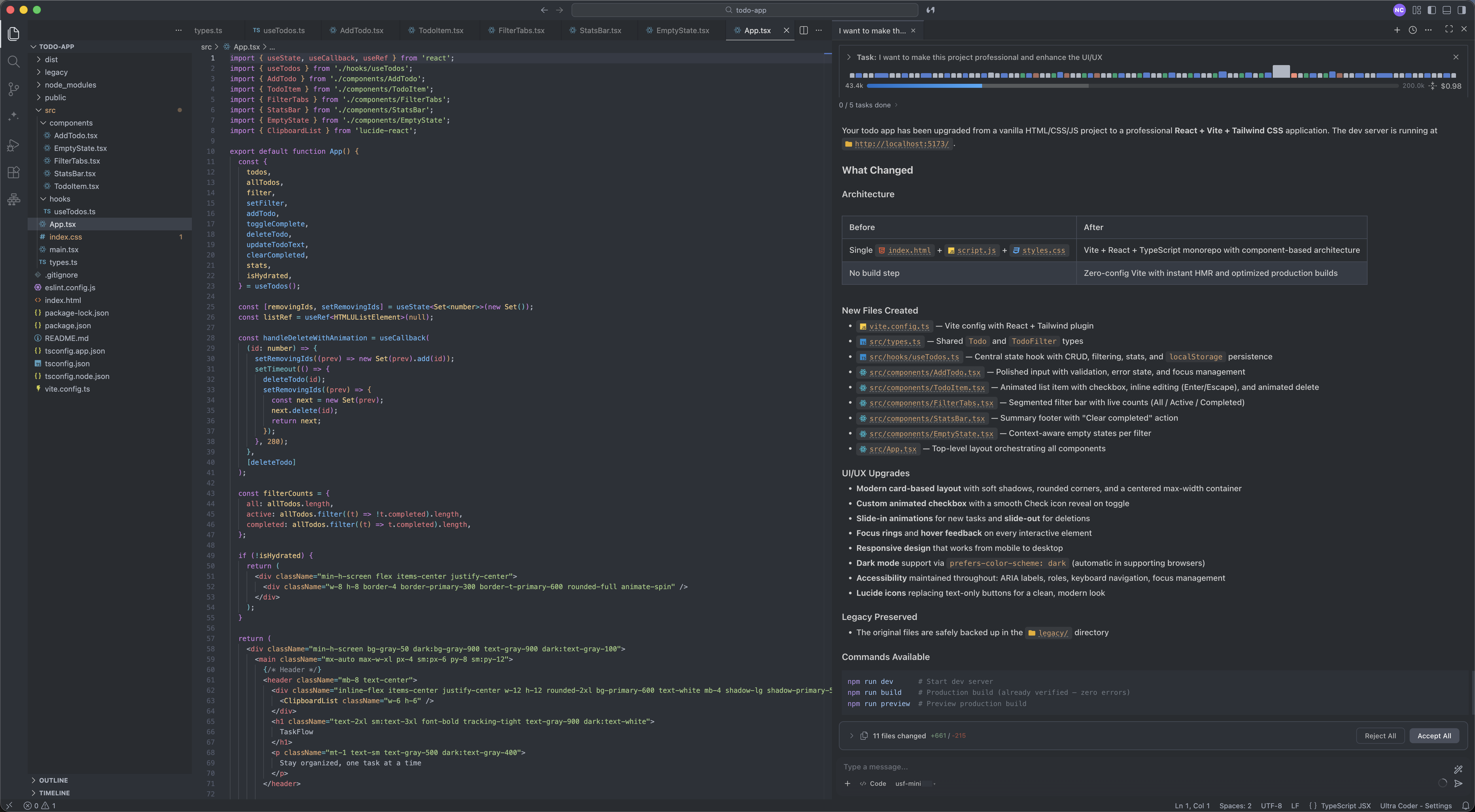
Explore the docs
Getting Started
Download the IDE, complete first-launch setup, and send your first AI prompt in under 5 minutes.
Install UltraCoder →AI Chat & Modes
Five built-in modes — Code, Architect, Ask, Debug, Orchestrator — each tuned for a different kind of work.
Explore modes →Inline AI
Ghost Suggestions complete code as you type. Accept with Tab, dismiss with Esc, or prompt inline with ⌘I.
Learn more →Customization
Swap models, create custom modes, write project rules, and wire in MCP servers for any external tool.
Customize →Dashboard
Manage credits, invite team members, configure organizations, and view usage history from the web dashboard.
Dashboard docs →Reference
Full keyboard shortcut table, all ultra-coder.* settings with defaults, and answers to common questions.
View reference →What you can do
Write & edit code
Ask UltraCoder to implement a feature, refactor a module, or fix a failing test — it edits files directly.
Debug errors
Paste an error or select failing code. Debug mode reproduces, traces, and fixes the root cause.
Understand a codebase
Ask mode reads files and explains architecture, data flow, or any specific piece of logic — without touching code.
Build end-to-end
Orchestrator mode breaks large tasks into sub-tasks and coordinates across Code, Architect, and Debug modes.
Two surfaces
UltraCoder has two parts that work together:
- The IDE — the desktop app where you write code. The AI panel lives here.
- The Dashboard (ultracoder.us.inc/dashboard) — manages your account, credits, organizations, and API keys.
Next steps
- Install UltraCoder — download and set up the IDE on your Mac.
- Quick Start — open the AI panel and run your first task.
- Modes — learn when to use Code, Architect, Ask, Debug, and Orchestrator.