
Getting Started
Installation
Download UltraCoder and get it running on your Mac in a few minutes. A free account is required — sign in via the app and you're ready to go.
System requirements
| Platform | Status | Architecture |
|---|---|---|
| macOS | Available | Apple Silicon (ARM64) |
| Windows | Coming soon | — |
| Linux | Coming soon | — |
Install on macOS
- 1
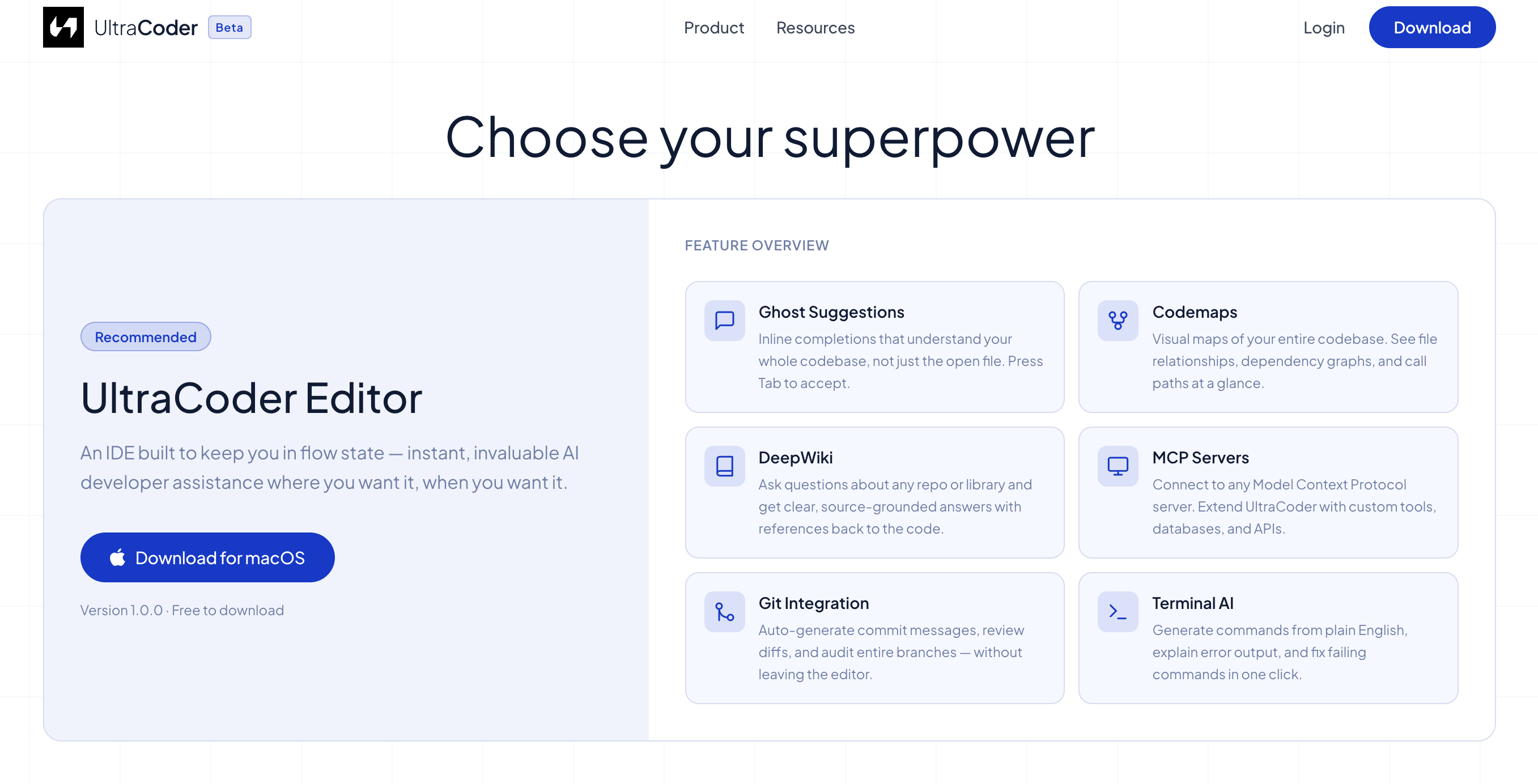
Download the app
Go to the Download page and click the macOS (arm64) build. The file downloads as a.dmgdisk image. - 2
Install the app
Open the.dmgfile. DragUltraCoder.appinto your/Applicationsfolder. - 3
Open for the first time
Right-clickUltraCoder.appin Finder and choose Open. macOS Gatekeeper will ask you to confirm — click Open again. After the first launch you can open it normally. - 4
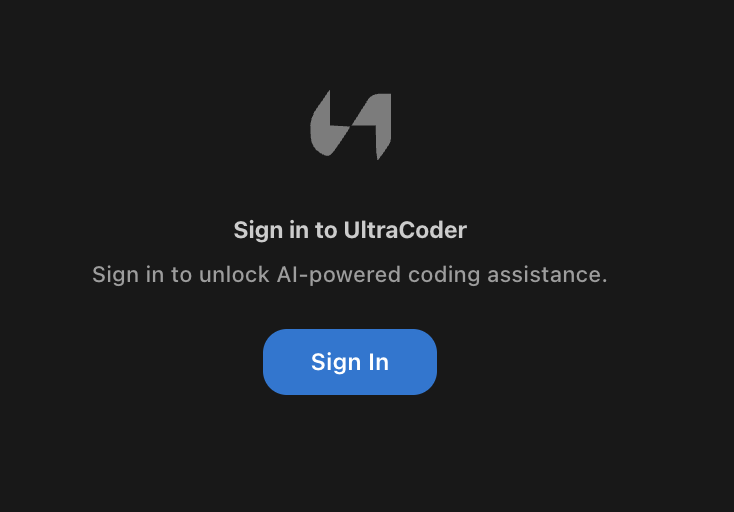
Sign in
UltraCoder requires an account to use. Click Sign in inside the app — you will be redirected to the UltraCoder dashboard in your browser. Log in there and you will be sent back to the app automatically, ready to start coding.
⚠ Warning:If macOS blocks the app with a “cannot be opened because the developer cannot be verified” message, go to System Settings → Privacy & Security and click Open Anyway next to the UltraCoder entry.
What gets installed
- The IDE (based on VS Code engine) at
/Applications/UltraCoder.app - User settings stored at
~/Library/Application Support/UltraCoder/ - No API keys or credentials stored in plaintext — secrets use the system keychain